

Getting started
There’s no password to remember: you sign in with a link sent to your email.
- Go to book.fletchedbanana.com and tap Sign in with your email. Type your address and tap the link in the email that arrives (check your spam folder the first time).
- Want a practice run? Tap Try a demo. Pick a shoot that’s just been booked, one under way with live scores, or one that’s finished with results. It fills with 60 made-up archers in about 20 seconds.
- For a real shoot, tap + New shoot and fill in the name, date, venue, how many targets are on the course and the round (NFAS, IFAA/EFAA, ASA, IBO, World Archery 3D and more). During early access, the date can be any day up to the end of 2028.
- The first time only, it asks for an organiser access code. Ask us for one.
- Copy the booking link and share it the way you normally would: club email, Facebook, WhatsApp.
You stay signed in on that device for 30 days. To let others help, invite them by email from the shoot’s Settings tab. A Check-in helper can check people in and take scorecards, but can’t see emails or phone numbers.
Before the day
Open your shoot from All shoots. The tabs along the top take you to each part.
- Entrants: everyone booked. Tap a name to see their details, fix a mistake (wrong bow style, misspelt name, Gents or Ladies) and tick Paid.
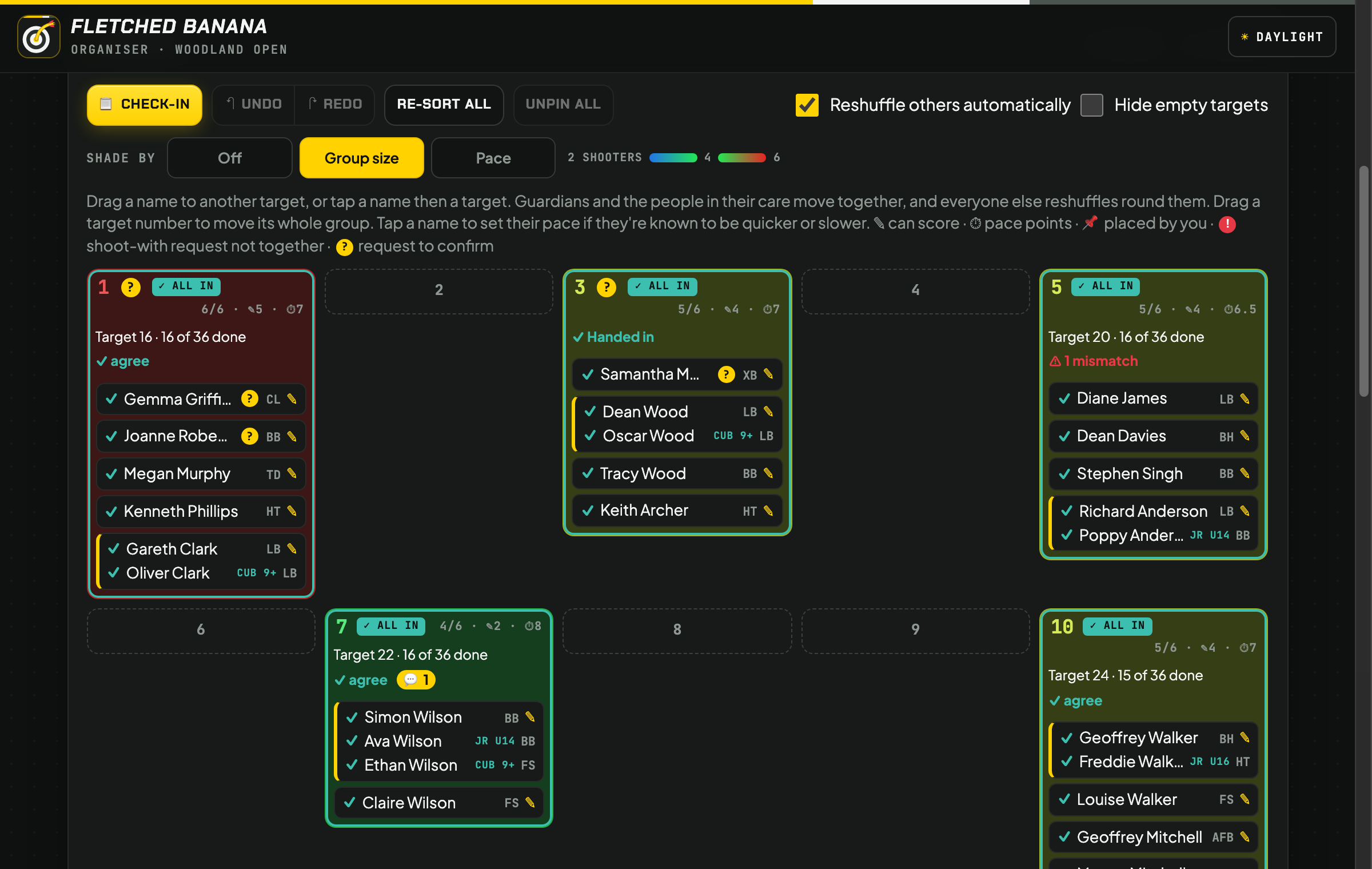
- Course: one square per target, with each group on its starting target. Groups are sorted for you: the right size, always two scorers, children with their adults, friends together and slow styles spread out. Drag a name to another target to move them; anyone in their care moves with them. Moved the wrong person? Tap Undo.
- Shade by Group size (blue is small, red is full) or Pace (red is likely to be slow) to spot problems at a glance. A red ! means two people asked to shoot together but are in different groups.
- Requests: what people wrote in “shoot with”. If one was read wrongly, tap Dismiss.
- Paper scorecards: on the Entrants tab, tap Print scorecard labels. Print one page on plain paper first and hold it against a label sheet to check it lines up.
On the day
Everything happens on your shoot’s Check-in and Hand-in tabs, on your phone. Archers keep their ticket open on their own phone, and it moves them on by itself.
- Before you leave home, open your shoot on the phone you’ll use, while you have good signal. It then works on the field with no signal at all.
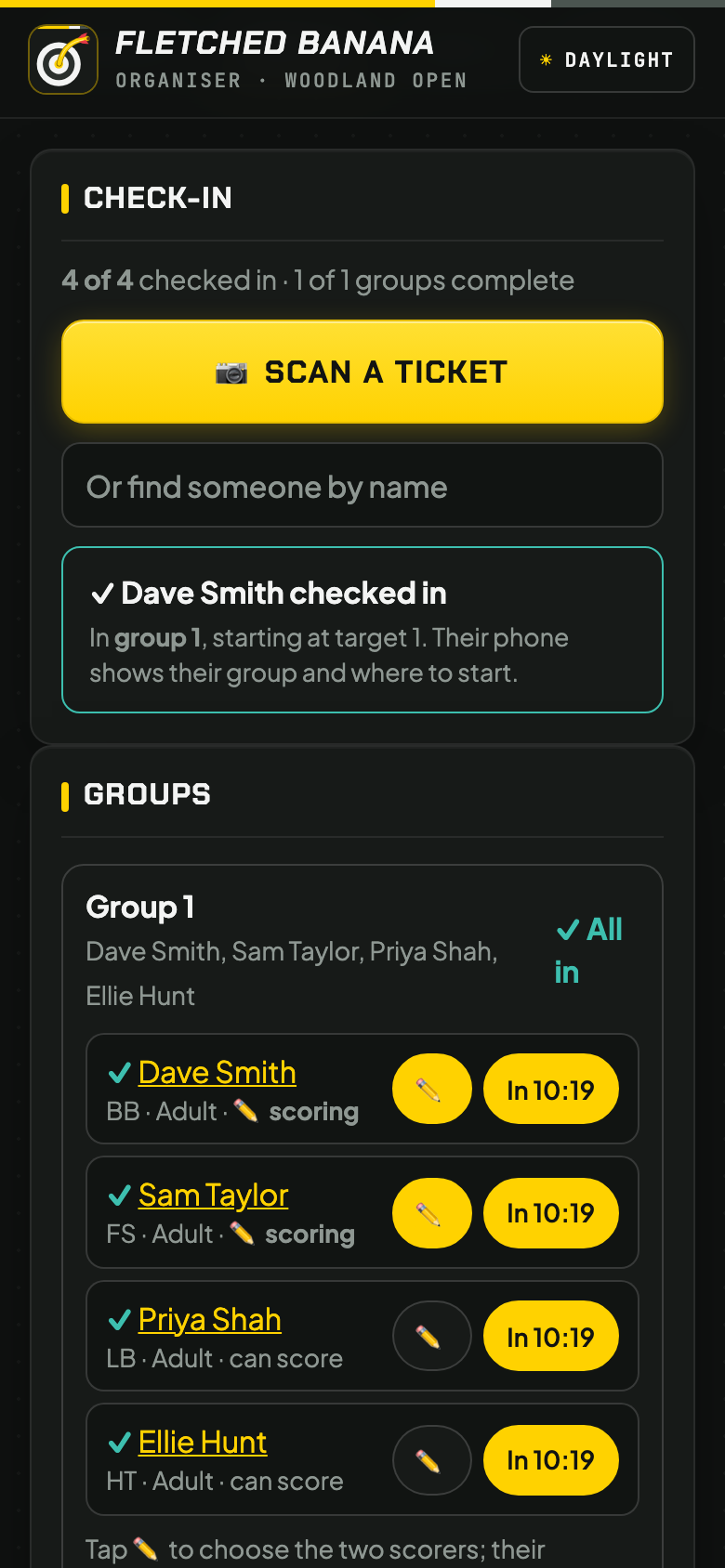
- As archers arrive, open Check-in, tap Scan a ticket and scan the code on their phone. You see their group and the target they start on; their phone shows their group and who is scoring.
- No ticket, or no phone? Type their name in the search box and tap Check in. A scorecard label works too.
- Groups set themselves up as people check in, with two scorers each. To change a scorer, open the group and tap ✏️ next to a name.
- Give your briefing. When you say go, scorers tap Start scoring. Anyone in a group who hasn’t checked in by then is marked as not shooting.
- While they’re out, the Course tab shows which target each group is on and whether their two scorers agree. Notes from groups (a lost arrow, a line call with a photo) appear at the top; open one to reply or mark it sorted.
- When groups come back, their phone shows a hand-in code. Open Hand-in, tap Scan and scan it. For paper cards, scan the label, type the total and tap Save.
After the shoot
The Report tab has the results and the numbers you’d normally work out by hand.
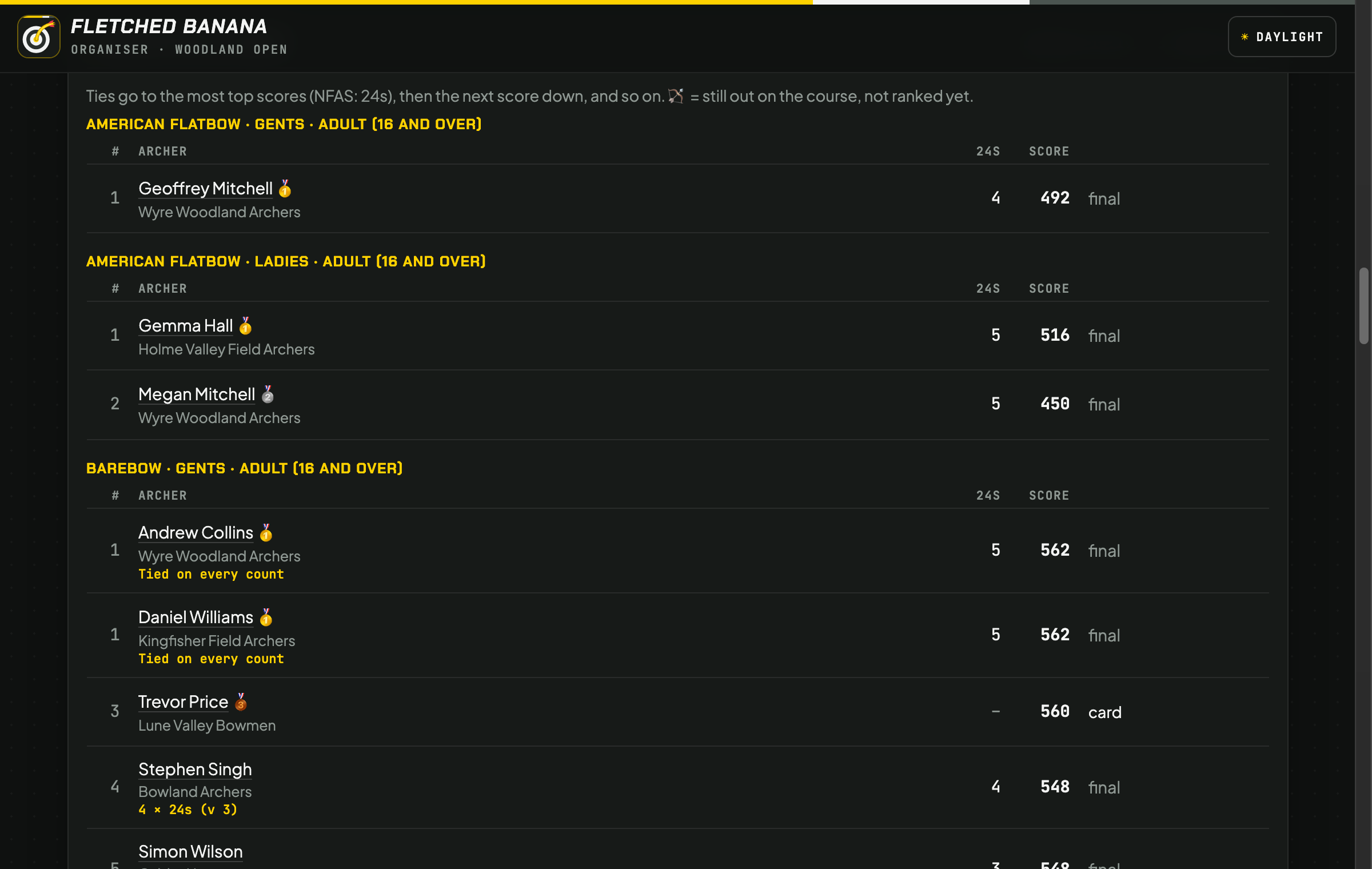
- Results by class, with medals, worked out from the phones and the paper cards. Ties go to the most top scores (24s in NFAS), then the next score down. If a group’s phones and paper card disagree, it’s marked so you can check the card.
- Attendance: who booked, who turned up, payments, and a count per club and per class.
- Download results as a spreadsheet for your website or the governing body, or Print report for the committee.
- Personal data (names, emails and phone numbers) is deleted automatically 90 days after the shoot; you can change that on the Settings tab. Anonymous numbers and results stay for your records.
For archers
- Book with the link your club shares. Book your children and anyone in your care on the same booking.
- You get a ticket on your phone. Keep it: it’s what gets scanned when you arrive.
- After check-in your phone shows your group, the target you start on and who is scoring. Listen to the briefing.
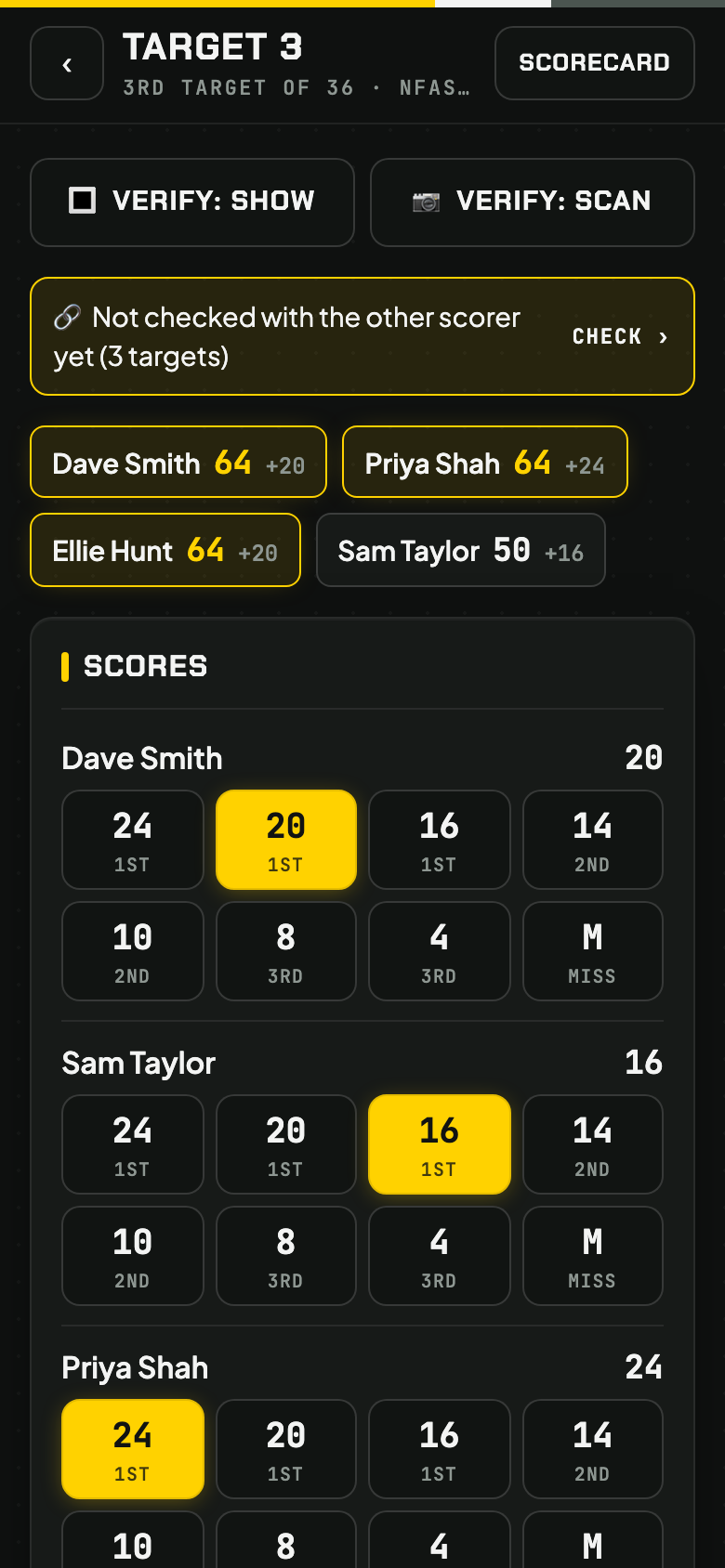
- Scorers tap Start scoring, then tap each archer’s score on every target. The two scorers’ cards are checked against each other as you go. Everyone else can follow the scores live.
- Lost an arrow, or can’t agree on a line? Tap Add a note on that target, add a photo if it helps, and the organisers can reply.
- On the last target, tap Confirm & submit scores, then show your hand-in code at the hand-in desk.
No signal?
Carry on as normal. Check-ins, groups, hand-ins and card totals are saved on the organiser’s phone, and scores on the scorers’ phones; they send themselves once there’s signal again. A banner shows how many changes are waiting. Scorers can also check their cards against each other by scanning each other’s codes, with no signal needed.
The free scoring app on its own
Tally works without a booked shoot too, free, with no sign-up. Open it on your phone and add it to your home screen to keep it like an app (here’s how, on iPhone and Android); it works offline from then on.
- Group round: choose the round, add everyone in your group, and tap each archer’s score on every target. If two of you are scoring, tap Verify and scan each other’s code to check your cards match. At the end, Finish & save round keeps it under Past rounds, where you can share the results or download a spreadsheet.
- Training: start a session and tap where each arrow lands on the kill diagram. Add the distance, the slope, how the shot felt, notes and photos. Trends shows where your arrows land on average and how you score in different conditions.
- Your data: everything stays on your phone unless you share it. Use Backup under the training history to keep a copy, or to move to a new phone.
Help
- No sign-in email? Check your spam folder, wait a minute, then ask for another. Each link works once, for 20 minutes.
- Is my phone up to date? In Tally, open About: it says which version you have and offers to update. The organiser site shows its version at the bottom of every page.
- Something looks wrong, or you’d like a walk-through? Get in touch.